Car screens
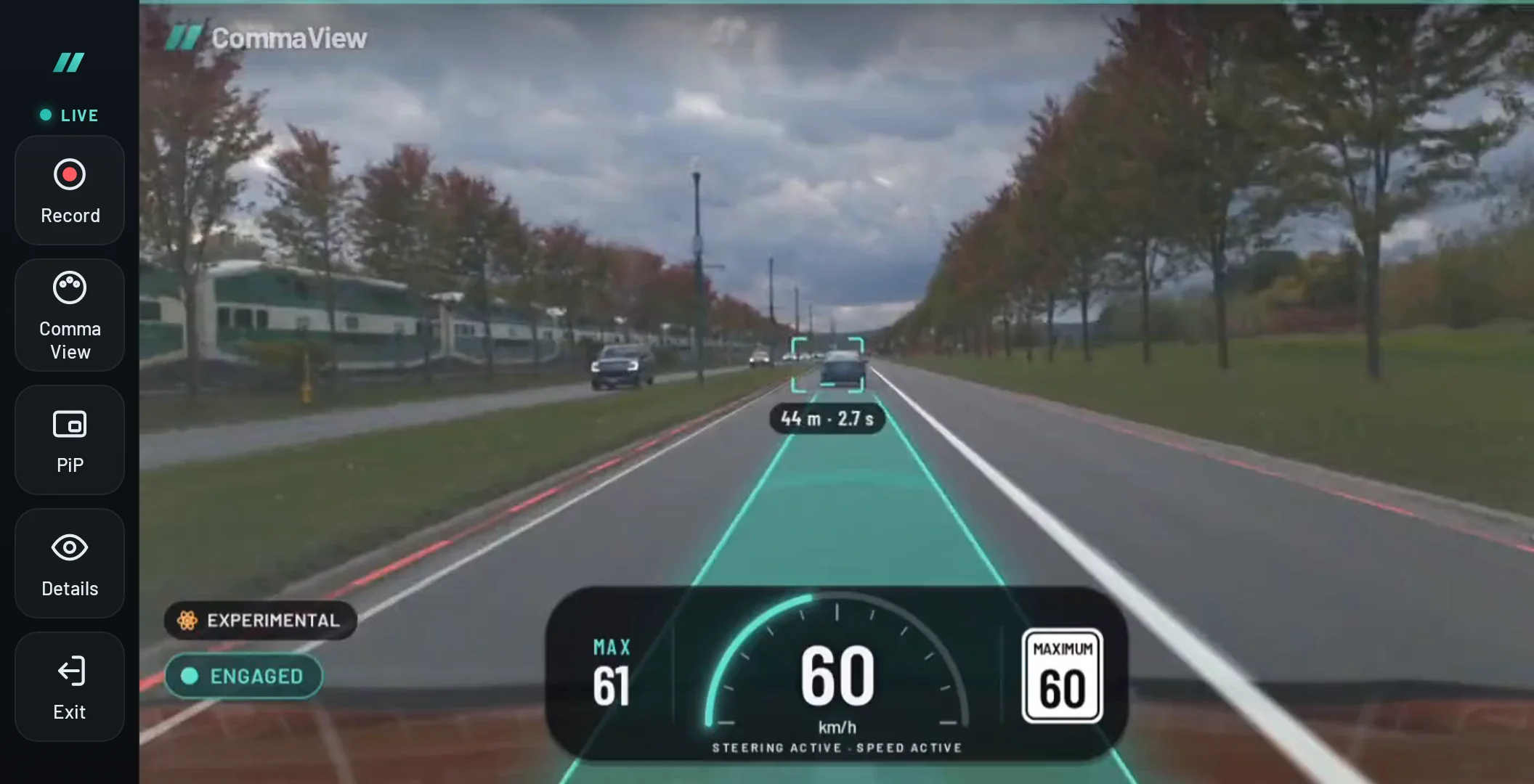
CommaView on your car’s screen.
The comma 3X’s and comma four’s screens are small. CommaView shows your comma’s Live View on a bigger one: an Android head unit, an Android AI box on the car’s own screen, or a phone or tablet on a mount.
What works while driving
CommaView is an Android app, so it needs an Android device in front of you. Any of these can run it while you drive:
-
An Android head unit
An aftermarket head unit that runs Android 8 or later: CommaView installs on it like on a phone, and runs on the car’s screen while you drive.
-
An Android “AI box”
A small Android computer that plugs into a car’s wired CarPlay or Android Auto port and draws its own Android screen there. CommaView runs on the box, not on your phone, and works on the car’s screen while you drive.
-
A phone or tablet on a mount
Any Android phone or tablet, on a dash or vent mount that doesn’t block your view. The simplest route, and the one most people use.
What doesn’t, and why
- CarPlay and Android Auto from your phone. CommaView isn’t a CarPlay or Android Auto app. Those platforms don’t let phone apps show video while the car moves.
- Parked video in CarPlay and Android Auto. Apple and Google are adding video for some cars, but only while parked, so it can’t show Live View on the road.
- Mirroring your phone to the car. Adapters that mirror a phone’s screen through CarPlay or Android Auto aren’t supported. Use an Android AI box or head unit that runs CommaView itself instead.
- Google built-in (Android Automotive). These cars install apps only from their own Play Store, where CommaView isn’t.
Set it up
Do all of this parked. Whichever route you take, the car screen runs its own copy of CommaView, paired with your comma.
1. Install CommaView on the car screen
- On the head unit, AI box, phone or tablet, open its web browser and sign in at my.commaview.com with the email your invite came to.
- Under Get the app, tap Download CommaView, open the download and allow installs from the browser for this one, then turn that back off, as in the install guide.
- Open CommaView and sign in. During the beta it needs the internet now and then to renew its access pass, so give it Wi‑Fi with internet at least once in a while.
Some head units and boxes block installs from the browser. If yours does, download the app on a computer and copy it over on a USB stick, then open it from the unit’s file manager.
2. Put it on the same network as the comma
Live View goes straight from the comma to the car screen over a local network, not the internet. CommaView doesn’t mind whose network it is: the car screen and the comma only have to be on the same one. In the car, that’s usually a hotspot, and any of these works:
- The car screen’s own hotspot. If the AI box or head unit can share a hotspot (many with a SIM card can), turn it on and join the comma to it in the comma’s Settings › Network.
- Your phone’s hotspot. Join the comma and the car screen to your phone’s hotspot. They also get the internet through it.
- The comma’s hotspot. Turn on the comma’s hotspot (openpilot calls it tethering: on a comma four, Settings › Network › enable tethering; on a comma 3X, Settings › Network › Advanced › Enable Tethering) and join it from the car screen.
- The same Wi‑Fi. At home, both on your Wi‑Fi. Handy for setup, but it ends when you drive away.
Pick the one that suits your car: the one that starts by itself when the car does is usually the least fuss. Some hotspots keep the devices on them apart; if the car screen can’t find the comma on one, try another.
Turn off any VPN on the car screen. CommaView finds the comma by itself on the same network, even if its address changes. If it doesn’t, enter the comma’s IP address: 192.168.43.1 on the comma’s own hotspot (every comma’s is the same), or on any other network, the IP address the comma shows under Settings › Network: under the network’s name on the Wi‑Fi button on a comma four, or under Advanced on a comma 3X.
3. Pair it with your comma
If your comma already runs CommaView from your phone, pair the car screen instead of setting it up again:
- On your phone, open the comma’s Device settings, then Pair another phone › Add another phone, and tap Show invitation: a code to type, or a QR code, good for 10 minutes and used once.
- On the car screen, tap Pair a comma that runs CommaView on Connect your comma (with a comma already added, open Add a comma on the Devices tab instead).
- Pick your comma and tap Enter its pair code (or Scan QR code). If it isn’t listed, tap Enter address and code and type its IP too. Type the invitation and tap Pair device. The car screen gets a key of its own, and your phone says A new phone has a key: tap It’s mine.
No CommaView on the comma yet? You can run guided setup from the car screen, but it’s easier from a phone: setup copies an SSH key to GitHub. Set up from your phone, then pair the car screen.
When you update your comma’s runtime, update CommaView on every device that watches it first, the car screen too. A car screen on an older CommaView keeps working for 90 days after the comma’s first phone gets its key; after that it needs CommaView 0.0.166 or later and an invitation.
Make it fit your screen
- Dashboard layout. On a wide screen, CommaView lays out as a dashboard, with navigation in a rail at the side. Live View keeps its controls in a rail beside the road, and makes the rail compact on short screens.
- Driver’s side controls. Live View’s controls sit on the driver’s side. On Auto, CommaView follows the side your comma reports; to set it yourself, choose Settings › Display › Driver position: Auto, Left-hand drive or Right-hand drive. It mirrors the controls on every screen.
- Screen edges. Some cars cut off the edges of the picture an AI box sends, and Android can’t tell. From CommaView 0.0.166, Settings › Display › Screen edges keeps the app clear of each edge: set each one until the line it draws shows all round, then check Home, Live View and Settings fit inside.
- Text size. Keep the unit’s text size at a size you can read at a glance. CommaView lays out for the room it has at that size.
Safety
Before you drive
Set it up parked, then leave it alone.
- Install, pair and set the layout while parked. Check Live View plays before you drive.
- Don’t operate CommaView while driving. Keep your eyes on the road and your hands on the wheel, as openpilot asks.
- Your comma’s own alerts and your car’s instruments come first. CommaView only shows what the comma sees.
- Mount a phone or tablet where it doesn’t block your view or an airbag, and follow your local rules on screens in cars.
Tested hardware
Car screens the CommaView team has driven with. CommaView should run on any device with Android 8 or later, but these are the ones we’ve checked:
| Device | Kind | What we checked |
|---|---|---|
| Doro head unit, Qualcomm QCM6125, Android 13, 1280 × 720 | Head unit | Live View on city drives (October 2026). |
| Dasaita 10.2″ head unit, 1280 × 720, in a Toyota RAV4 | Head unit | Live View while driving; recording uploads, parked. |
Help us test. Every car screen is different. If you run CommaView on a head unit or box, tell us how it went, and we’ll add it here once we’ve checked it.
Tell us about your car screen
Send it to us from the car screen itself, so the report carries its model and screen size:
- In CommaView on the head unit or box, open Settings › Support & diagnostics and tap Report a problem or send an idea.
- Choose Idea, then switch on This phone’s diagnostics (an idea leaves them off): they tell us its make, model and screen size.
- In the note, say your car, the head unit or box (brand and model), how it’s connected (whose hotspot, or Wi‑Fi), and what worked and what didn’t. Then tap Send.
You’ll find what you sent, and our replies, under Your feedback at my.commaview.com. Not in the beta yet, or the app won’t start? Tell us in the CommaView Discord.
Questions about car screens
Can I use CommaView through CarPlay or Android Auto?
Not from your phone. CommaView isn’t a CarPlay or Android Auto app, and those platforms don’t let phone apps show video while the car moves. An Android AI box gets around this, because it’s its own Android device: CommaView runs on the box, and the car shows the box’s screen.
Will it work on my car’s built-in Android Automotive (Google built-in)?
Not yet. Cars with Google built-in install apps only from their own Play Store, where CommaView isn’t. If you try it another way, tell us how it went.
Can I use a car screen and my phone with the same comma?
Yes: pair each one with the comma. One of them has Live View at a time, so leave Live View on the other one first. From CommaView 0.0.166, with its runtime, Live View says “Live View is open on another device” and starts by itself once you go back to Home on the other one.
My car cuts off the edges of the picture. What can I do?
Some cars crop the picture an AI box sends, and Android can’t tell. From CommaView 0.0.166, Settings › Display › Screen edges keeps the app clear of each edge you set.