Setup guide
Set up CommaView
Two pieces: the CommaView app on your Android phone, tablet or head unit, and its small runtime on your comma. Install the app, then guided setup in the app puts the runtime on your comma and pairs it.
You’ll need: your invite’s email, an Android device (Android 8 or later), a comma 3X or comma four on openpilot or a supported fork, both on the same local network, and a GitHub account, which the comma takes SSH keys from. Step 2 has the details.
1Step 1 of 4
Get the app
- On your Android device (Android 8 or later), sign in at my.commaview.com with the email your invite came to.
- Under Get the app, tap Download CommaView. Its SHA-256 checksum is shown beside it if you want to check the file.
- Open the download. Android asks you to allow installs from your browser: allow it for this install, then turn it back off.
- Open CommaView and accept its first-run notice. It asks once whether to Help improve CommaView by sending crash reports and which driving software your comma runs, never video, drives, places or names: Send or Don’t send, which you can change any time in Settings › Privacy & sharing. During the beta it also asks you to sign in: tap Sign in and use the email your invite came to. After that it works offline while its access pass is valid, and tells you when an update is ready.
Installing on a head unit or an AI box on your car’s screen? Car screens covers its network and pairing it with your comma.
2Step 2 of 4
Get your comma ready
Check these before you start. Setup takes a few minutes, in Park with openpilot disengaged.
-
A comma 3X or comma four
The comma 3 isn’t supported: its openpilot release is frozen upstream and draws its screen differently, so CommaView can’t show its overlay. Setup tells you if it finds one. Why the comma 3 isn’t supported
-
openpilot or a supported fork
openpilot, sunnypilot, StarPilot, xnor, AdventurePilot, SunnyPilot-TeslaHW1 or carrotpilot, installed and running as usual. CommaView adds its runtime beside it and never changes how it drives. Supported forks
-
The same network
Your phone and the comma on the same local network: your Wi‑Fi, your phone’s hotspot, the comma’s own hotspot or any other they can both join. Do setup in Park, with openpilot disengaged. Keep the car on so the comma stays powered.
-
A GitHub account
The comma lets in SSH keys from the GitHub username you give it. CommaView makes the key; you add it to GitHub in step 3.
3Step 3 of 4
Guided setup
The app walks you through SSH, installs the runtime on your comma, checks it, and saves the comma. Here’s each screen.
-
3.1
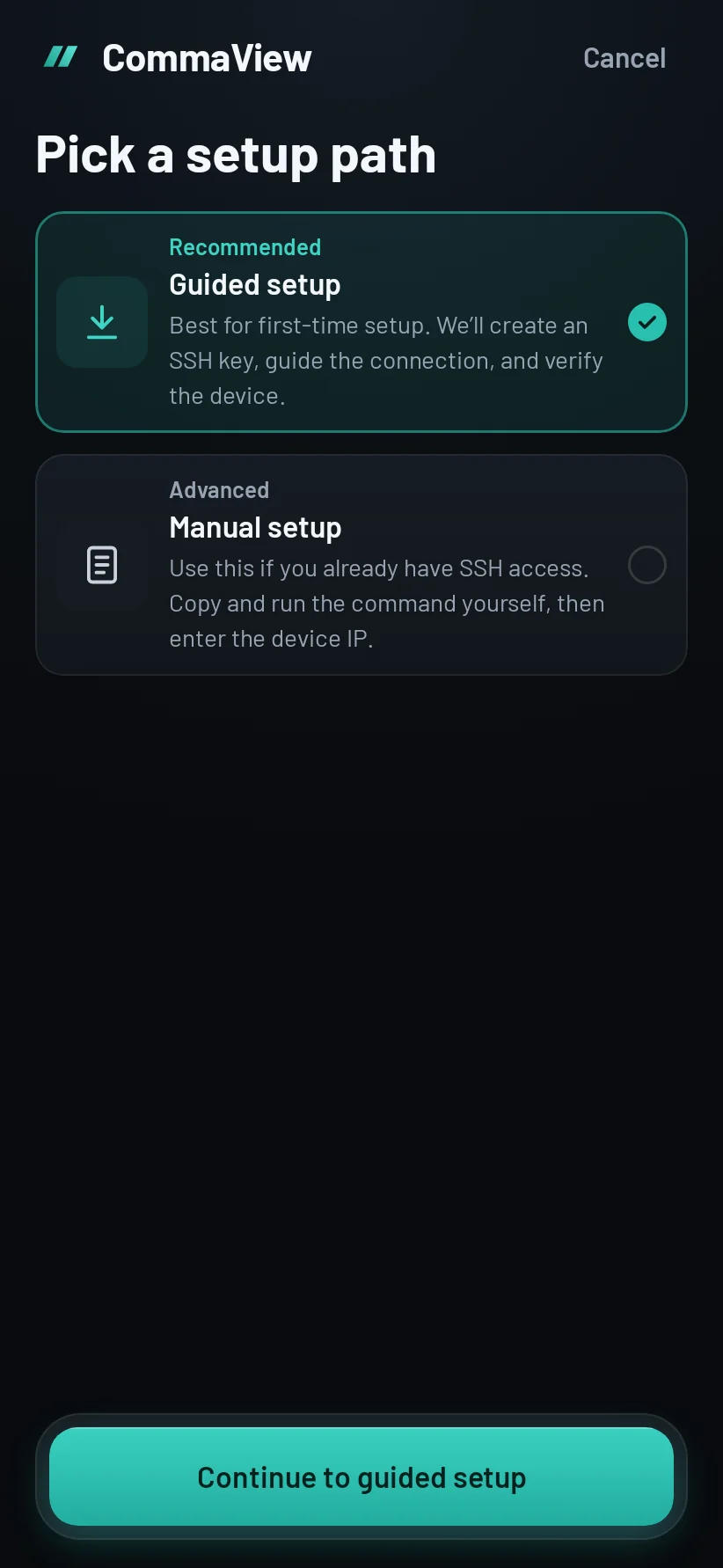
Pick a setup path
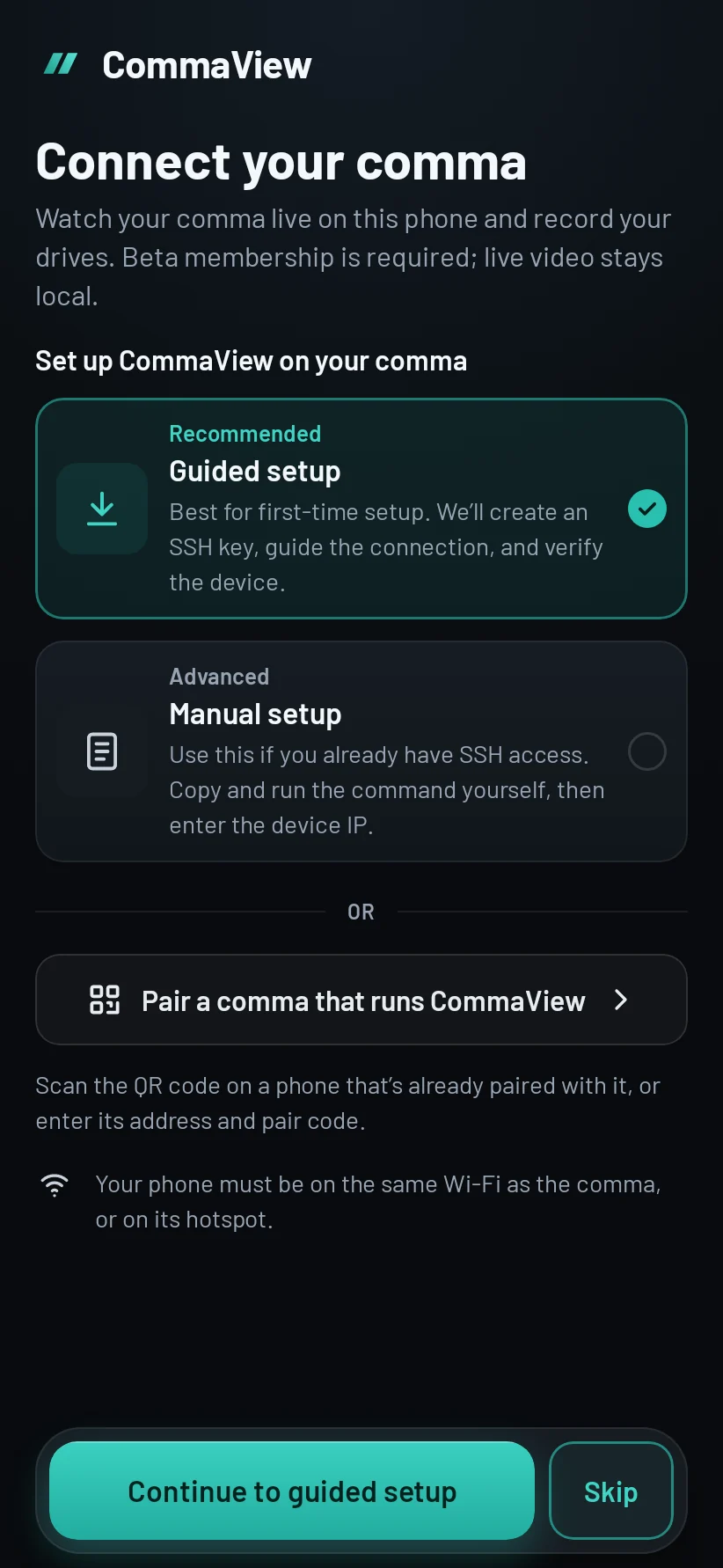
Open CommaView. The first time, it asks you to confirm it’s unofficial software you’ll set up while parked, and to sign in (step 1). Then it offers to set up your comma.
Choose Guided setup (it’s marked Recommended) and tap Continue to guided setup.
-
3.2
Add the SSH key to GitHub
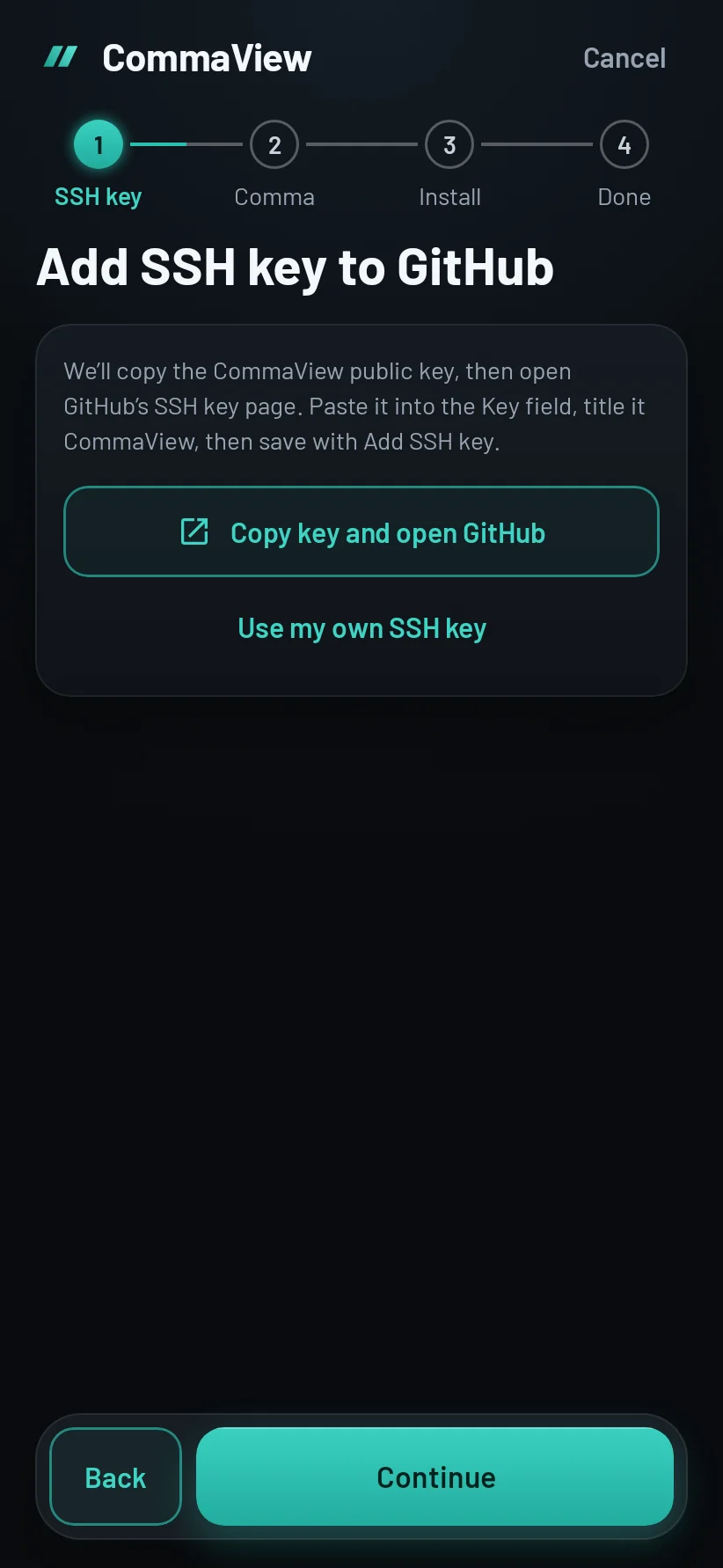
CommaView makes an SSH key for this phone. Tap Copy key and open GitHub: it copies the public key and opens GitHub’s new SSH key page.
Paste the key into the Key field, give it any title (CommaView fills one in), then save with Add SSH key. Come back to CommaView and tap Continue.
Already have a key pair on GitHub? Use my own SSH key imports it instead. The private key stays on your phone.
-
3.3
Turn on SSH on your comma
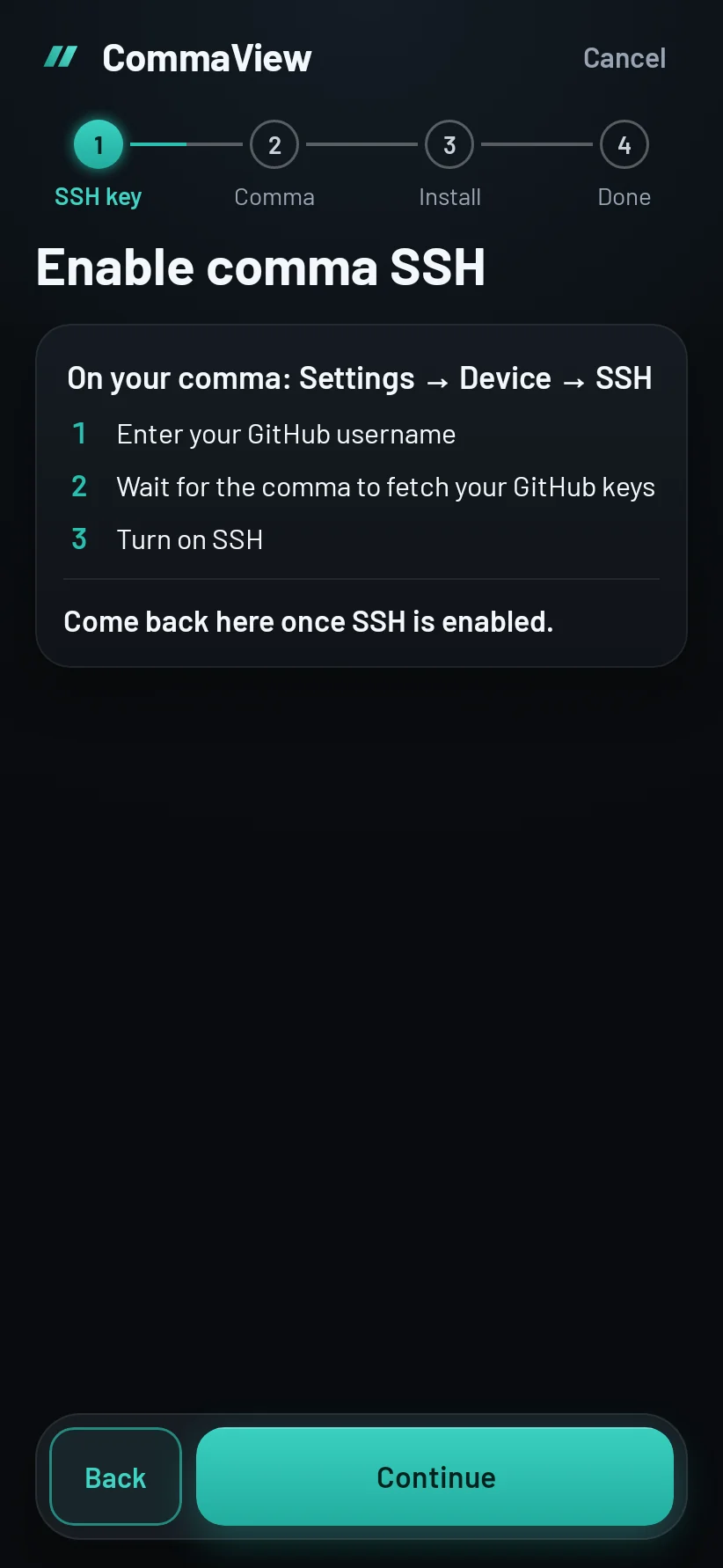
On the comma’s screen, go to Settings → Device → SSH:
- Enter your GitHub username.
- Wait for the comma to fetch your GitHub keys.
- Turn on SSH.
Then come back to CommaView and tap Continue.
The comma fetches your keys when you enter the username. If you add the key to GitHub later, enter the username again so it fetches them again.
-
3.4
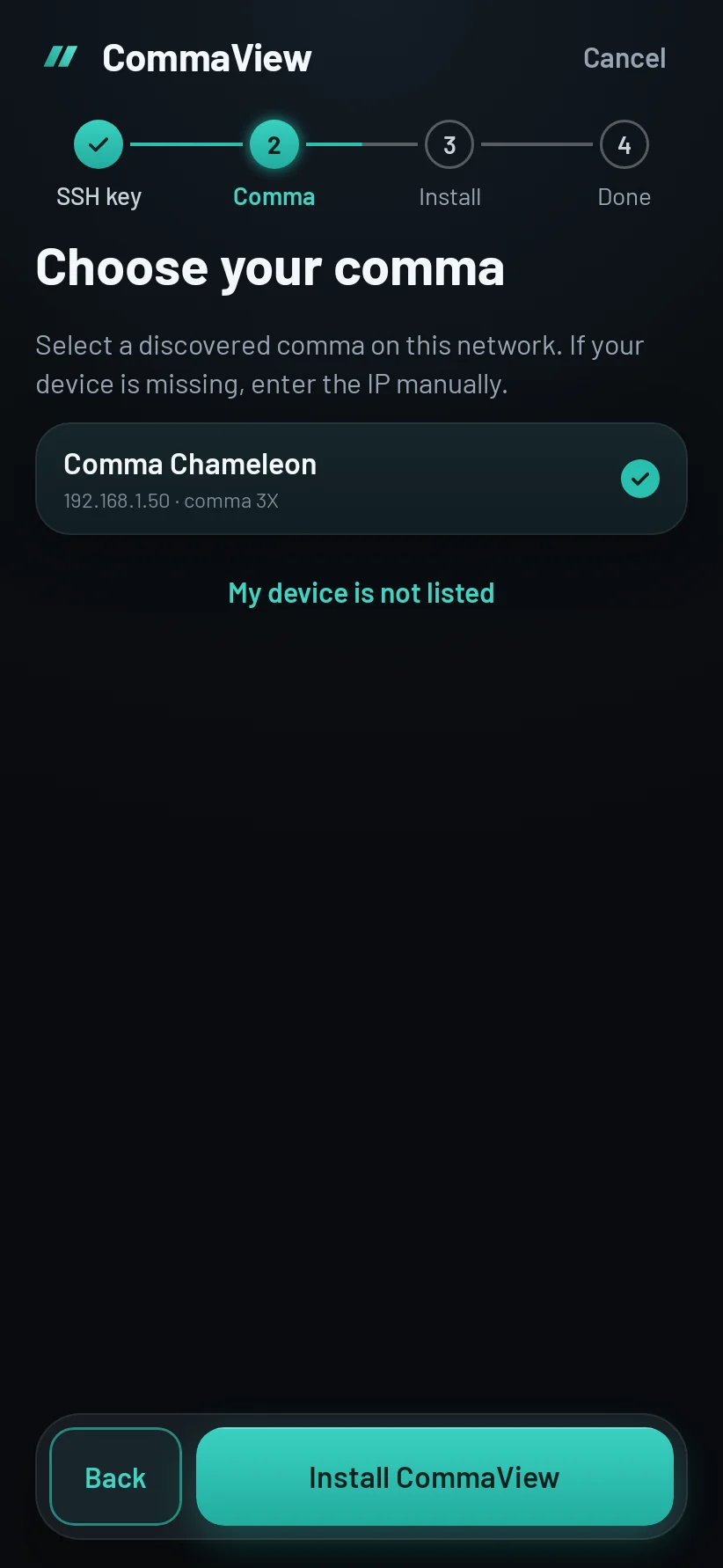
Choose your comma
CommaView looks for commas on your Wi‑Fi network. Select yours and tap Install CommaView.
Not in the list? Tap My device is not listed and type its IP address. You’ll find it on the comma under Settings → Network: under the network’s name on the Wi‑Fi button on a comma four, or under Advanced on a comma 3X.
-
3.5
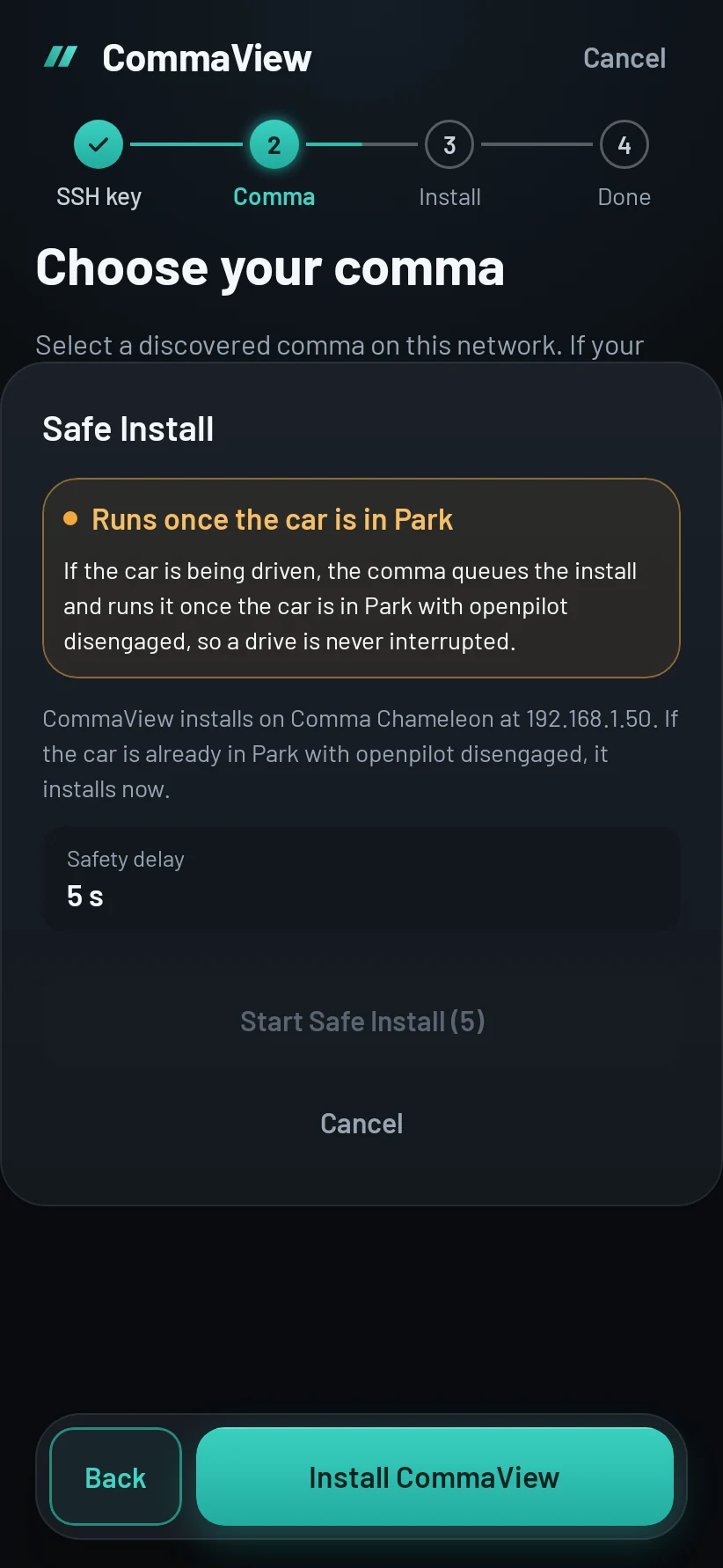
Start the Safe Install
Read the note, then tap Start Safe Install once its short countdown ends. If the car is in Park and openpilot isn’t engaged, CommaView installs now.
If the car is being driven, the comma queues the install and runs it once the car is in Park with openpilot disengaged, so a drive is never interrupted. Setup shows Install queued: put the car in Park with openpilot disengaged, wait a minute, then tap Finish setup. You don’t need to switch the car off; without a power harness that would switch the comma off too.
-
3.6
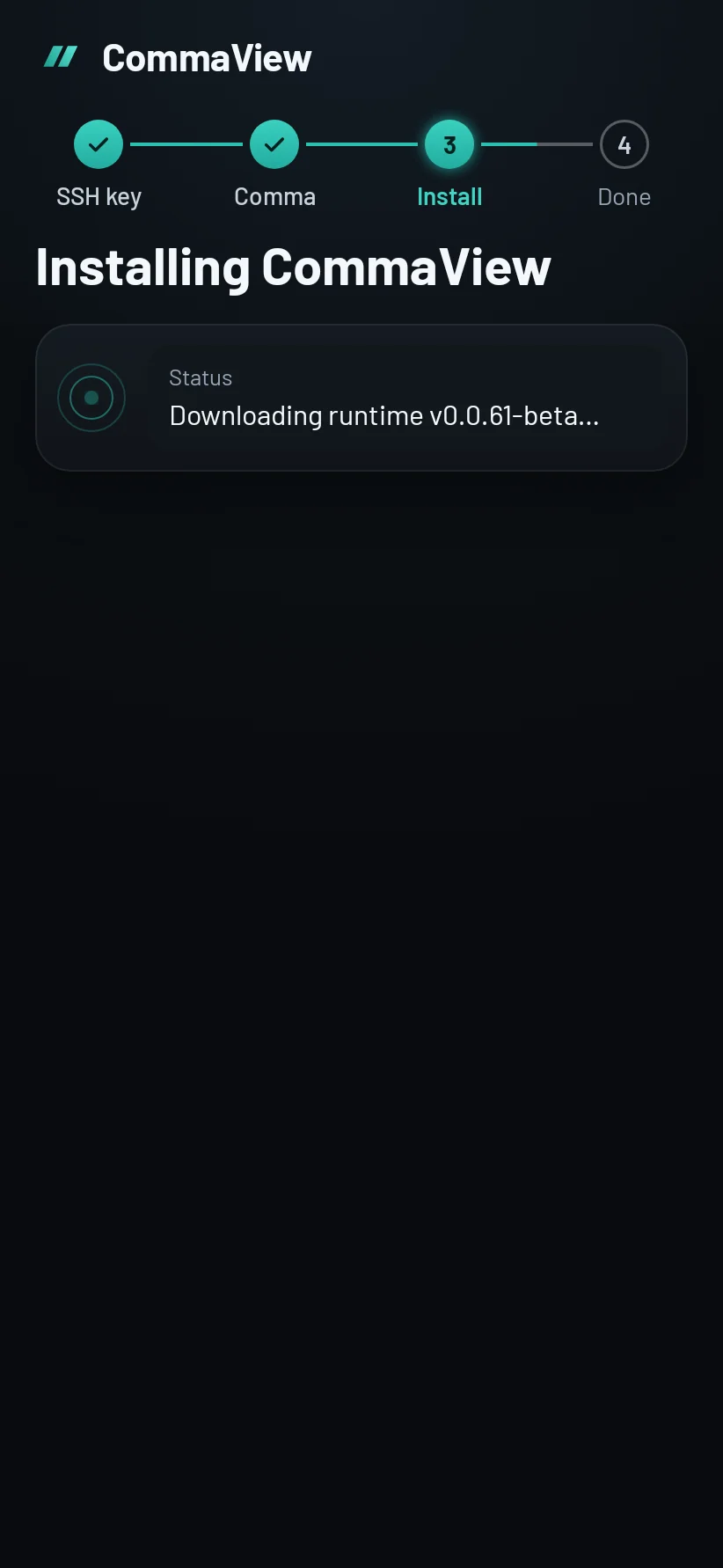
Let it install and check
CommaView connects to the comma over SSH, checks which comma it is, and installs the CommaView runtime. Then it checks the install is answering and saves your comma on this phone.
It installs the runtime this version of the app was tested with. Keep the phone on the same network until it’s done.
-
3.7
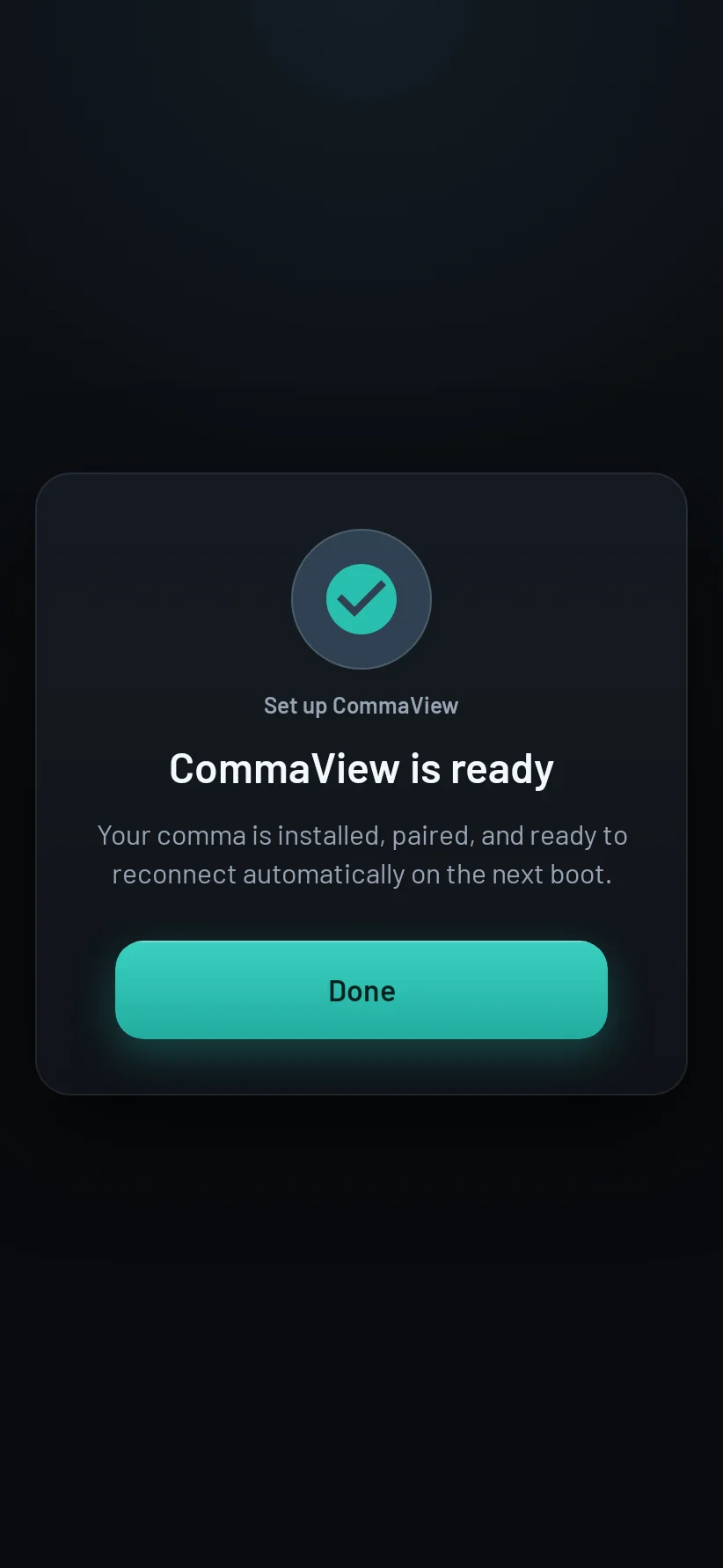
CommaView is ready
Your comma is installed, paired, and reconnects by itself the next time it starts. Tap Done.
4Step 4 of 4
You’re connected
Your comma on the home
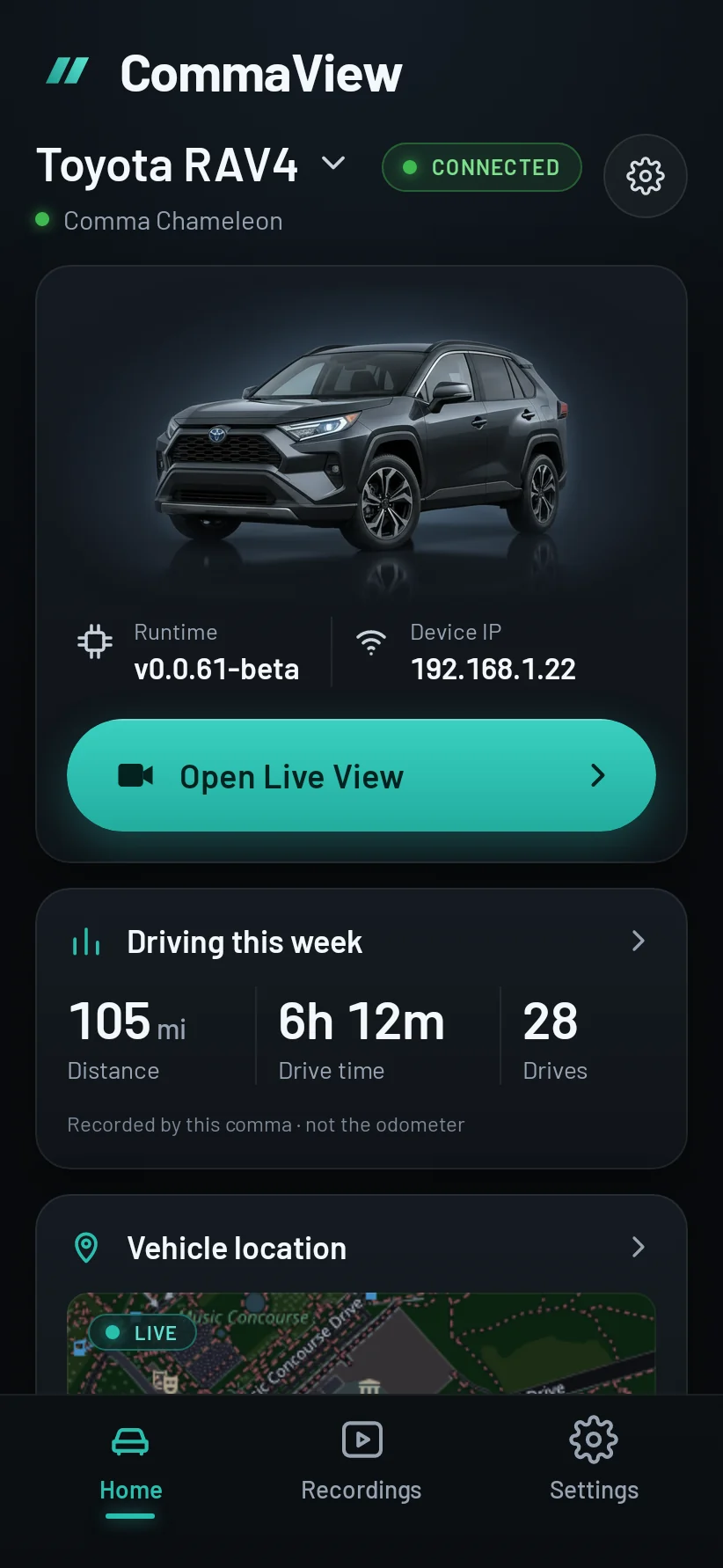
The home shows your car with its comma Connected, the runtime and the comma’s address, this week’s driving and where the car is.
From now on the app finds your comma by itself when your phone and the comma are on the same network, even if its address changes.
Open Live View, then drive
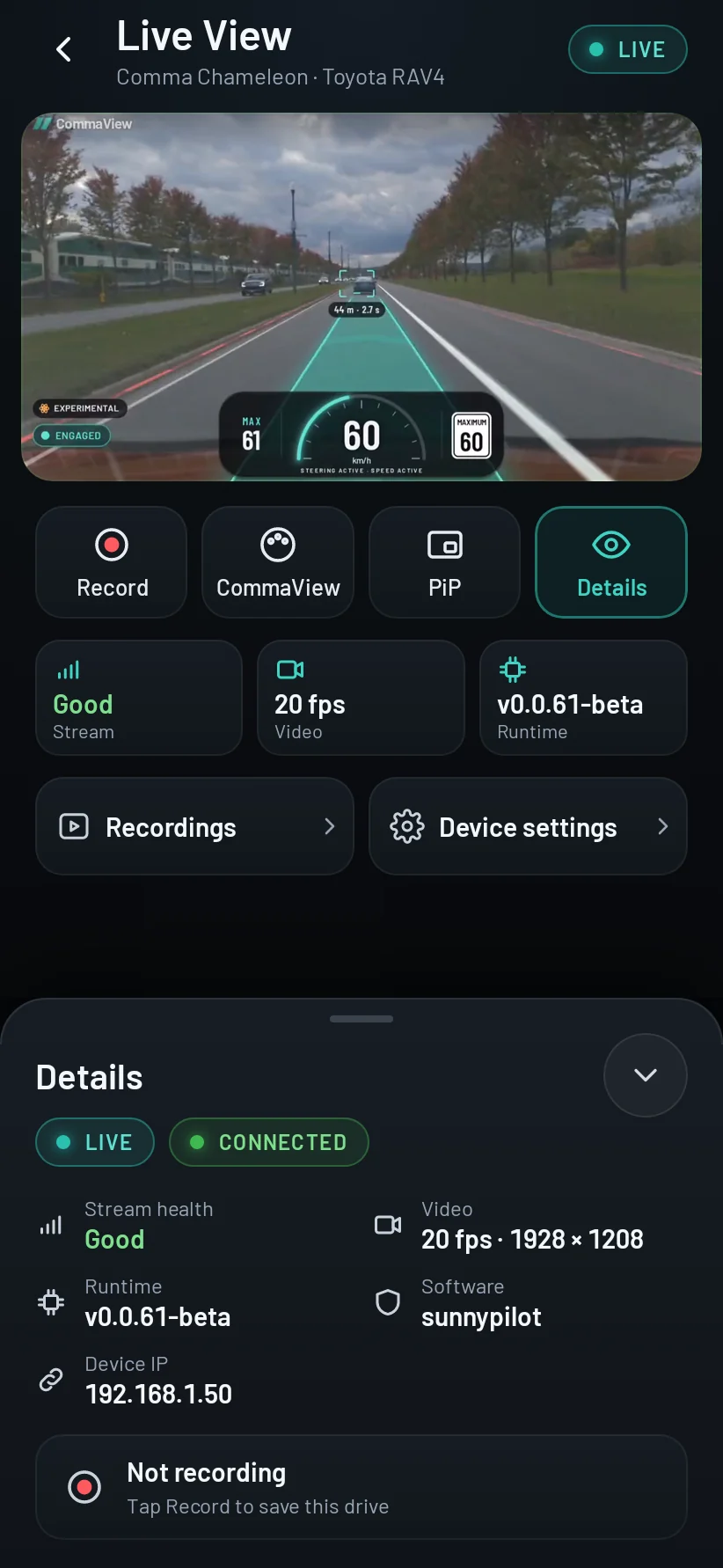
Tap Open Live View. The road video plays live, with the path and the car ahead drawn over it.
Before your first drive
Try it in Park before you drive.
- The home shows your comma as Connected.
- Live View plays and the path moves with the car.
- If the app shows a warning or asks for a repair, sort it out before you drive.
- Set it up so it never needs your attention while driving.
Manual setup and troubleshooting
Advanced Manual setup from a terminal Only if SSH already works from your computer to the comma as user comma.
- In CommaView choose Manual setup, then Continue to manual setup. The app shows the command for its runtime on Install from your terminal, ready to copy. It looks like this one, which installs the current release’s runtime:
curl -fsSL https://commaview.com/commaviewd/install.sh \
| ssh comma@COMMA_IP bash- Run it from a computer on the same Wi‑Fi network as your comma, with
COMMA_IPreplaced by the comma’s IP address (Settings → Network on the comma: under the network’s name on the Wi‑Fi button on a comma four, or under Advanced on a comma 3X). - When the installer finishes, the runtime shows a one-time pair code.
- Back in CommaView, tap I ran the command. Select your comma or enter its IP, type the pair code, and tap Add device. The app checks the runtime and saves the comma.
Troubleshooting
Couldn’t connect over SSH
Check SSH is on under Settings → Device → SSH, the GitHub username is yours, and the CommaView key is on that GitHub account. If you added the key after entering the username, enter the username again so the comma fetches it.
My comma isn’t in the list
Make sure the phone is on the same network as the comma (the same Wi‑Fi or hotspot), and not on a VPN. Then tap My device is not listed and enter the comma’s IP address (Settings → Network on the comma: under the network’s name on the Wi‑Fi button on a comma four, or under Advanced on a comma 3X).
Setup says Install queued
The comma saw the car being driven, so it waits. Put the car in Park with openpilot disengaged, wait a minute, then tap Finish setup. Leave the car on: without a power harness, switching it off switches the comma off too.
The pair code didn’t work
Pair codes are one-time and expire quickly. Run the installer again for a fresh code, and check you typed it as shown (the hyphen is optional).
Connected, but no video
Setup and pairing are done; this is the video stream. Check the comma is on and onroad-ready, keep the phone on the same network, and reopen Live View.
Still stuck? Ask in the CommaView Discord, or send feedback from the app. If support asks for logs, send a support bundle.