How-to
Browser View: CommaView’s Live View in your car’s web browser
How to set up Browser View, which shows CommaView’s Live View in your car’s own browser, a Tesla’s too, from your phone’s hotspot. Nothing to install in the car.
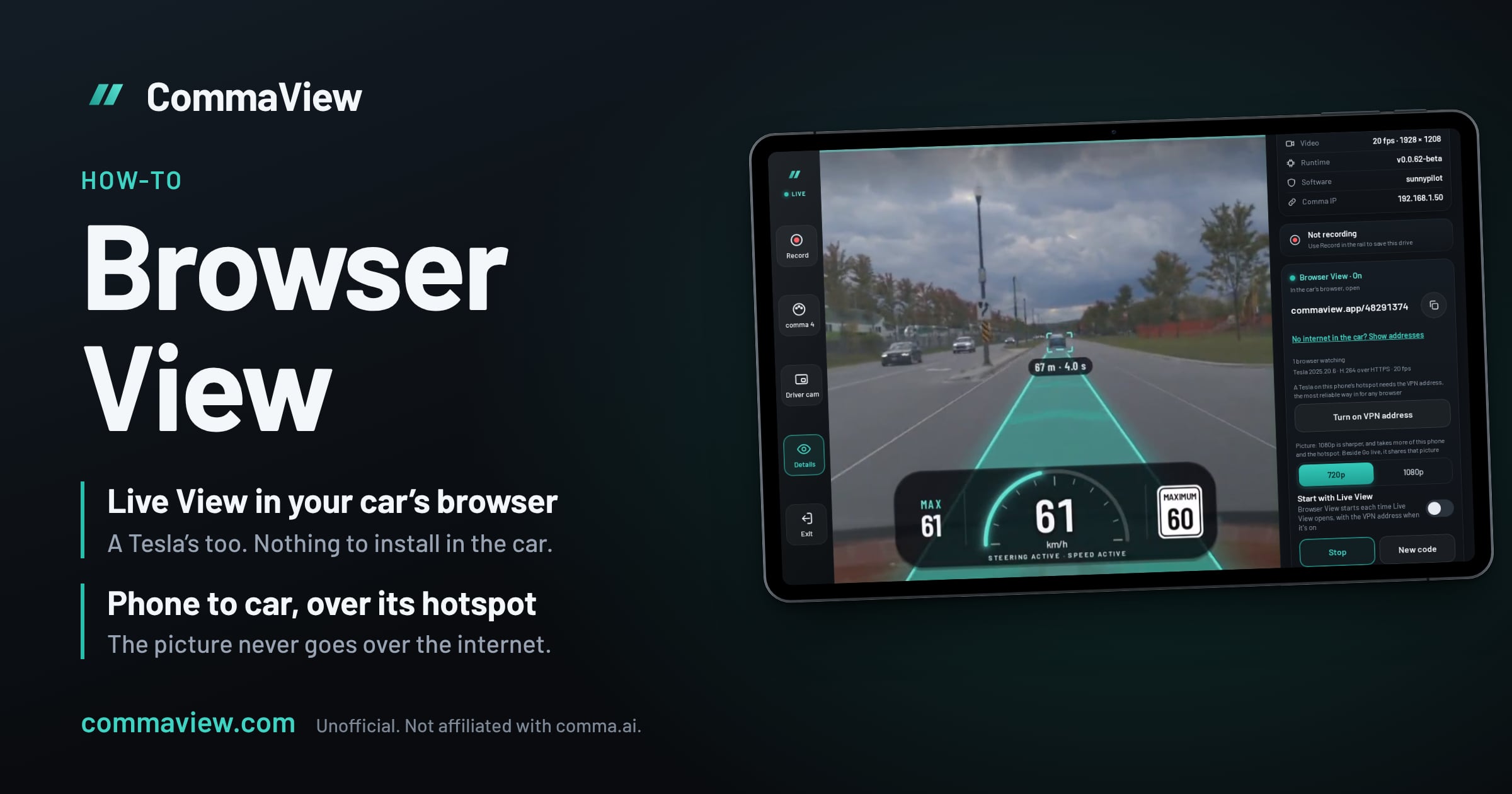
Browser View shows what CommaView’s Live View shows in your car’s own web browser. Your phone runs Live View as usual and serves it to the car over the phone’s hotspot or Wi‑Fi, so there’s nothing to install in the car. It was made for cars like a Tesla, which has a browser but no CarPlay or Android Auto, and it works in any browser that can reach your phone.
Browser View is new in the CommaView 0.0.166 beta.
How it works
Your phone already gets Live View from your comma. Browser View takes the picture Live View draws, its overlay and the driver camera included, and serves it as a web page from the phone, for browsers on the phone’s hotspot or Wi‑Fi:
- The picture goes from your phone to the car over the hotspot or Wi‑Fi, not over the internet. Only the short link’s page comes over the internet, and you can skip it (below).
- An eight-digit code is part of the address. A browser needs the code, and has to be on your phone’s hotspot or Wi‑Fi, to watch.
- 20 frames a second, in 720p or 1080p. Browsers that allow it get H.264, the smoothest picture; others get a picture at a time, which is less smooth and works harder.
- Up to four browsers can watch at once. There’s no sound.
What you need
- CommaView on an Android phone, paired with your comma, with Live View working. See the install guide if you haven’t set it up.
- A car with a web browser, such as a Tesla. A tablet or laptop in the car works too.
- The car on the same network as your phone. Usually that’s the phone’s hotspot, with the car joined to it. Your phone still needs your comma as usual, so join the comma to the phone’s hotspot too, or keep both on any network they share.
Set it up
Do this parked the first time.
- Turn on your phone’s hotspot and join the car to it. In a Tesla, turn your phone’s Wi‑Fi off first, so the hotspot shares mobile data, and check the car joined your phone, not a Wi‑Fi it already knows. Join your comma to the hotspot too if it isn’t on it.
- Open Live View on the phone, then Details. Near the end, the Browser View card says what it does and what it tells CommaView. Tap Start.
- In a Tesla, tap Turn on VPN address, and allow it when Android asks to let CommaView set up a VPN. A Tesla’s browser won’t open the addresses a hotspot gives out. The VPN address gives your phone one it will open,
169.254.99.1. It carries no traffic, and it turns off any other VPN app while it’s on. Other cars don’t need it. - In the car’s browser, type the short link the card shows, such as
commaview.app/48291375, and tap Open. With the car online and CommaView signed in, the page finds your phone and opens it over a secure connection: a padlock, no warning, and the smoothest picture. The first time, give the phone a few seconds after Start to get its certificate. Signed out, the phone has no certificate, so a Tesla gets the basic picture (below). - Bookmark the page the car opens. Its address stays the same, so next time, with the car online, you can open the bookmark instead of typing the short link.
The card then says who’s watching (“1 browser watching”) and what the car’s browser draws, such as “Tesla 2025.20.6 · H.264 over HTTPS via the VPN name · 20 fps”.
No internet in the car
The short link needs the car online for its page, through the hotspot’s mobile data or the car’s own connection. Without it, open the phone’s address itself. On the card, tap No internet in the car? Show addresses:
- Best picture, an HTTPS address such as
https://192.168.43.1:8443/48291375. The browser warns first, because the phone signs this address itself: accept the warning to go on. A Tesla’s browser won’t let you past it. - Basic picture, the same address over HTTP, such as
192.168.43.1:8090/48291375. No warning in any browser, a Tesla’s too, but a lower-quality, less smooth picture.
With the VPN address on, the card shows its addresses instead, https://169.254.99.1:8443/<code> and 169.254.99.1:8090/<code>. In a Tesla with no internet, use the basic one.
Your phone’s hotspot address may differ from the example; the card always shows the right one, with a Copy button beside each.
Choices on the card
- Browser View picture: 720p or 1080p. 1080p is sharper, and takes more of the phone and the hotspot. 720p until you choose.
- Start with Live View. Browser View starts each time Live View opens, with the VPN address if it’s on. Stop it and it stays stopped until Live View opens again.
- Make a new Browser View code. Makes a new eight-digit code, so an address someone else saw stops working. Open the new address in the car.
- Controls in the car. Record, Save, Map, the onroad screen, Go live and Driver cam sit under the picture or beside it on the driver’s side, never over it, and what doesn’t fit goes into More. Controls in the car on the card turns them off.
- The driver camera shows in the car too while Live View’s Driver cam is on.
While it runs
- Browser View keeps going with the phone locked or in another app. Its notification says “Showing Live View in Browser View”, and its Stop ends it.
- Leaving Live View ends it, as it ends Go live and live copies.
- Go live beside Browser View shares its picture. Started while Browser View runs alone, a stream has no sound: stop Browser View first for sound.
Privacy and security
- The picture goes only to browsers on your phone’s hotspot or Wi‑Fi that have the code. Never over mobile data, and never through CommaView’s servers.
- Ten wrong codes in a minute from one device shuts it out for a minute, and a device already watching carries on.
- While Browser View runs, your phone sends CommaView’s account service its code, its ports, whether the VPN address is on and the hotspot’s or Wi‑Fi’s private address, so the short link can find your phone. Anyone who has the code can see them, and your phone’s
commaview.appname, while Browser View runs and for up to 2 hours after it stops unexpectedly; none of them opens anything without your phone’s hotspot or Wi‑Fi. They’re deleted 30 days after Browser View last ran. Your phone’scommaview.appname and its last certificate’s date stay while your account does. Certificates are public, so that name stays in Certificate Transparency logs; it says nothing about you, your car or your comma. The privacy policy has the details. - The VPN address is your choice, never turned on by itself, and carries no traffic.
If it doesn’t open
- “Waiting for the car’s browser” and nothing opens. Check the car joined your phone’s hotspot, not another Wi‑Fi. In a Tesla, turn on the VPN address.
- “Turn on this phone’s hotspot”. The phone is on neither Wi‑Fi nor a hotspot the car could share. The address appears within 5 seconds of either coming on.
- The short link says the VPN address is off. Turn it on in the card, then reload the page.
- A warning you can’t get past. Use the short link with the car online, or the basic picture.
- The picture stops in Drive. Whether a car’s browser keeps drawing while you drive is up to the car maker. The card’s report line says what the car draws (“0 fps · hidden” is a picture the car stopped). Tell us your car and its software version.
To send us the details, turn on Keep diagnostics on this phone before you drive, then send Report a problem or send an idea from Settings afterwards. Say your car, its software version and your phone.
Safety
Set Browser View up parked, then leave it alone. Don’t operate CommaView while driving: keep your eyes on the road and your hands on the wheel, as openpilot asks. Your comma’s own alerts and your car’s instruments come first. CommaView only shows what the comma sees.
Questions
Do I need an AI box or a new head unit? No. Browser View uses the browser your car already has. If your car has CarPlay or Android Auto instead, an Android AI box can run CommaView on the car’s screen itself.
Does it use my mobile data? The picture doesn’t: it goes from the phone to the car over the hotspot. The short link’s page and the car’s own use of the hotspot do.
Can my comma’s hotspot do this instead of my phone’s? For most browsers, yes: put the phone and the car on the comma’s hotspot and open the address the card shows. A Tesla needs the VPN address, which works only for a car on the phone’s own hotspot.